
1. Precaution
This firmware is intended for use with DX5 II only and is not compatible with other models. Flashing this firmware onto a different model will render the product inoperable and irreparable. If your firmware version is already V2.14, there is no need for this upgrade.
2. How to check the firmware version
Press and hold the knob while powering up (powering up: i.e. switching the power switch on the rear panel to power on).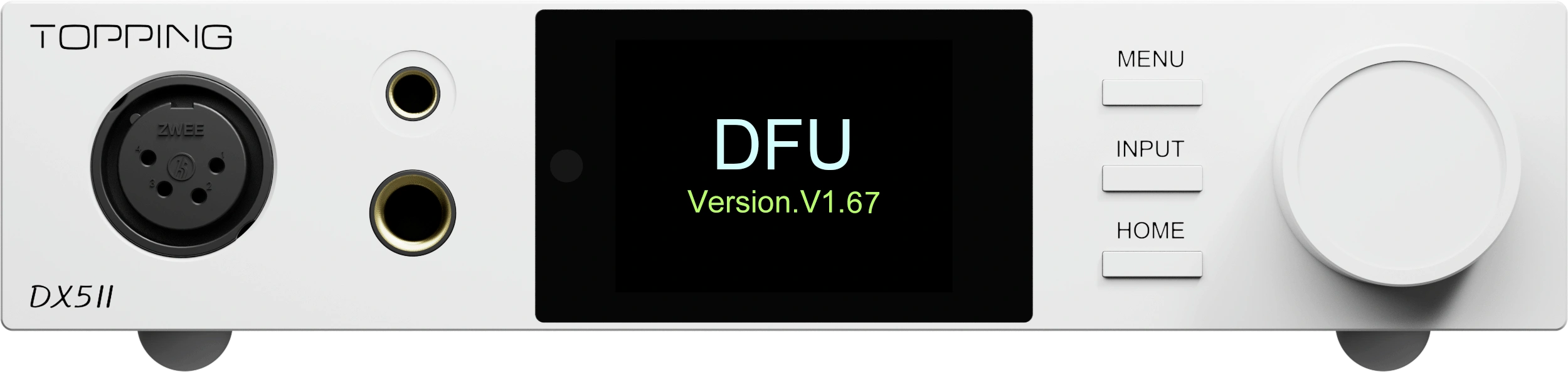
*The picture is only for reference.
3. Download
Windows/MacOS: Download here
4. How to update the firmware
1. Connect the power cable to the DX5 II and the power outlet.
2. Connect the device's USB interface to a PC/Mac via a usb cable.
3. Turn off the device with the power switch on the back. Press and hold the knob, then power on with the power switch. The screen will show the current software version.
4. A removable drive will show up in the explorer on PC/Mac. Open the drive.
5. Extract the downloaded compressed file, then copy the .Topping file to the root directory of the drive. The drive will then eject itself and reconnect
6. Reopen the drive. A new file will be showing the current firmware version as "Update successful(Version.Vx.xx)" of which the "XX" is the new firmware version that indicates the firmware is successfully upgraded.
7. Turn off and on the device again. The upgrade is complete.
5. Problems may be encountered
· The firmware package downloaded from the official website must be extracted first. Follow the firmware upgrade instructions and copy the extracted .Topping firmware file to a USB drive.
· Make sure to upgrade with the correct firmware for your model. Do not use firmware intended for other products.
· Do not disconnect or interrupt the process during the upgrade.
· Try again using a different USB cable, USB port, or computer.
6. What's updated
*Fixed: After selecting Mutual Feedback - Simple - ks2b-JanMeier and saving, the device would restore to factory settings upon reboot or standby wake-up
*Fixed: No audio output when switching sampling rates in NetEase Cloud exclusive mode
*Fixed: Several known issues


